How do I add audio or video to my site?
You can add audio or video to your site using the Multimedia Box. We recommend that you view our Video Standards page before creating your video. You can follow these steps to add the Multimedia Box:
- Click on Add Items.
- Click on Multimedia Box.
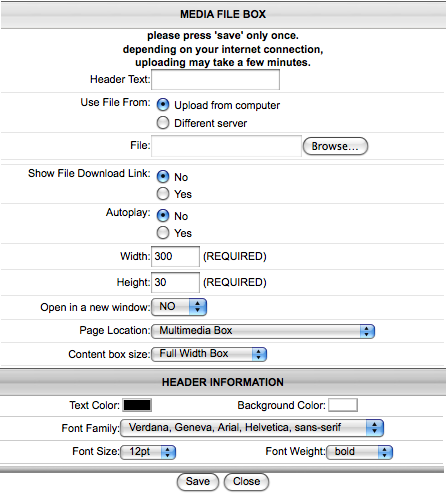
- Enable the features you need:
- Header Text – This is the title of your multimedia file.
- Use File From – You can upload your multimedia file either from your computer or from a different server. To upload your file from your computer, you can click on Browse to open the file from your computer. To upload your file from a different server, you can enter the website address in the File box.
- Show File Download Link – This enables visitors to download the multimedia file to their computer. This creates a link under the multimedia file that visitors can right click on to download the file.
- Autoplay – This will enable the multimedia file to automatically begin playing when someone visits the page.
- Width - This is the width of the multimedia file. If you are uploading audio, this is the width of the play bar. If you are uploading video, you will need to update this to the original width of the video.
- Height - This is the height of the multimedia file. If you are uploading audio, this is the height of the play bar. If you are uploading video, you will need to update this to the original height of the video.
- Open in a new window - Instead of playing the multimedia file directly on the page, you can enable it to play in a new window. This will create a link on the page that opens up the multimedia file in a new window.
- Click on Save.
What does the Multimedia Box look like?
The Multimedia Box will add a player for each individual video file you upload. Click here to view an example of the player.
What files can I upload?
The Multimedia Box will allow you to upload audio or video files. Here are some of the common types of files that can be used along with the type of player it uses to play the file:
SWF - plays using a Flash player
RV, RA, RM - plays using Real Player
WMA, WMV, WM, ASF - plays using Windows Media Player
MOV, FLV, and others - plays using Flowplayer
Your media file should be 512MB or less. If your file is larger than this size, we recommend that you convert your file with different settings or compress it.
How do I center my media file?
The Multimedia Box will display your file left-aligned by default, however, there is some code that can be modified to center the Multimedia Box. If you are not comfortable with updating the code, feel free to contact Technical Support and we will be glad to update this for you. Otherwise, you can follow these steps to center your Multimedia Box:
- Click on the pencil icon to edit your Multimedia Box.
- Click on the Advanced tab.
- Turn Override automatic HTML to ON. This will display the code.
- Inside the code there is an "a" tag that is similar to the following line of code:
<a href="http://www.yourdomain.com/images/images_I0001/filename.mp3" style="display:block; width:320px; height:240px;" id="mediadiv5186"></a> - Add the following text to this tag:
margin:0 auto; - It should look like this after you have updated it:
<a href="http://www.yourdomain.com/images/images_I0001/filename.mp3" style="display:block; width:320px; height:240px; margin:0 auto;" id="mediadiv5186"></a> - Click on Save.
How do I convert my video?
For more information on how to convert your video, please see our Video Standards page located here.
I am not able to upload the file.
When you upload media files using the Multimedia Box, it is best to keep your file size under 512 MB. Typically, if your file is larger it will time out during the upload. We would also recommend that you upload your files when you are connected via a wired network connection instead of a wireless connection. A wireless connection will typically be slower than a wired connection, which could also cause the file to time out.
My audio file does not play the audio.
If your audio file isn't playing, there are several things to check when trying to resolve the issue.
First, verify that your speakers are on and your volume is turned up. You can test this by going to another website, such as YouTube. You should also try to play the audio directly from your computer, instead of the website, to verify that it works properly. If the audio does not play directly from your computer, then there may be an issue with the audio file. If the audio does play from your computer, can others hear the audio on the website from their computer? If not, you may need to contact Technical Support.
My video file does not play the audio.
First, verify that your speakers are on and your volume is turned up. You can test this by going to another website, such as YouTube. You should also try to play the video directly from your computer, instead of the website, to verify that it works properly. If the audio does not play directly from your computer, then there may be an issue with the video file. If the audio does play from your computer, can others hear the audio on the website from their computer? If not, you may need to contact Technical Support.
My video file does not play the video.
To verify that there is not an issue with the video file, try playing the video directly from your computer instead of the website. If it does not play, then there may be an issue with the video file.
If the video plays directly from your computer, you should check the video dimensions in Perpetua. These should be exactly the same dimensions as the original video. For example, if the video was created at 640px wide by 360px high, then these should be the dimensions entered in Perpetua. If Perpetua is trying to re-size a video, then it may display properly in some browsers, but not display at all in other browsers. It will also decrease the quality of the video. If the dimensions of the original video are too small or too large, then it is best to adjust the video before uploading it.
My video file does not have a play button.
This usually occurs when the video is being re-sized. Are the dimensions in Perpetua the same as the dimensions of the original video? For example, if the video was created at 640px wide by 360px high, then these should be the dimensions entered in Perpetua. If Perpetua is trying to re-size a video, then it may display properly in some browsers, but not display at all in other browsers. It will also decrease the quality of the video. If the dimensions of the original video are too small or too large, then it is best to adjust the video before uploading it.
subpages
- Advanced Security
- Anchors
- Blogging
- Calendar
- Contact Management
- Domain Transfers
- E-commerce
- Email Marketing
- Embedding Videos
- Event Box
- Flash Event Box
- Flash Photo Gallery
- File Box
- Forms
- Go Live
- Image Manager
- Image Verification
- Multimedia Box
- Page Layout/Properties
- Pages
- Podcasting
- SEO Basics
- Sorting Content
- Social Media
- Sub Page Box
- Troubleshooting
- Website statistics
- WYSIWYG FAQs
- Video Standards
- Walkthrough